Overview:
The H: drive is your home drive and when not in the office accessed through App Depot
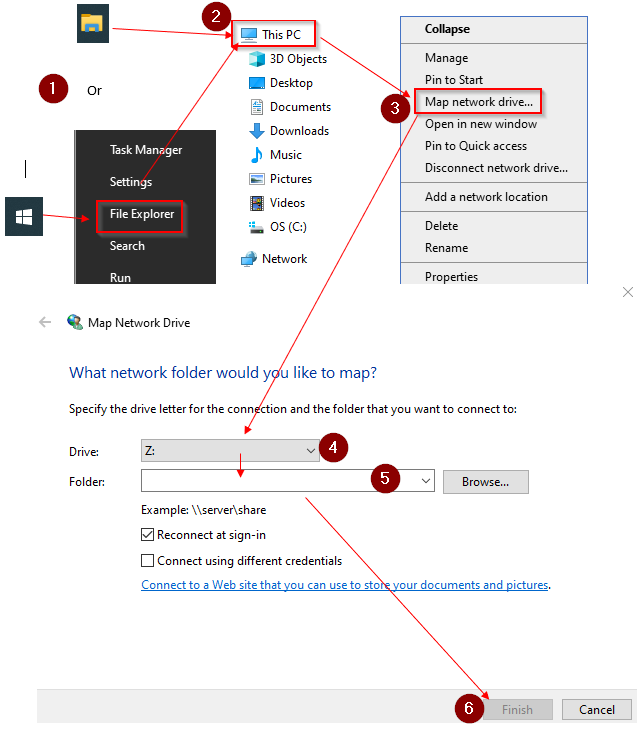
Steps:
- Log into App Depot, open one of the virtual desktop, (see How do I access my network drives from home? – for instructions to download Citrix Workspace)
- (1) Open File Explorer from the Task bar (or right-click the Windows menu and select it from the popup)
- (2) Right-click "This PC" in the left pane and (3) select "Map Network Drive."
- (4) Choose a drive letter for the connection (select any blank letter I through Z or select H to map H drive)
- (5) In the Folder box, type the server name followed by the share name (Example: \\server \share). If you are mapping your H drive, type: \\cypress\users$\firstname.lastname (replace with your actual user name).
- (6) Click Finish
NOTE: These desktops are not persistent on App Depot (unless you're remoting to your own PC). If you map a drive or use a printer from one of the virtual desktops, they are only available during that virtual/remote session. The desktop configuration will not be saved the next time you login to App Depot.