Overview:
Accessing your Sinclair network drives remotely, you can use App Depot.
App Depot performs best when it is accessed via the Citrix Workspace App—this is strongly recommended unless the computer being used will not let you install apps or software.
Steps:
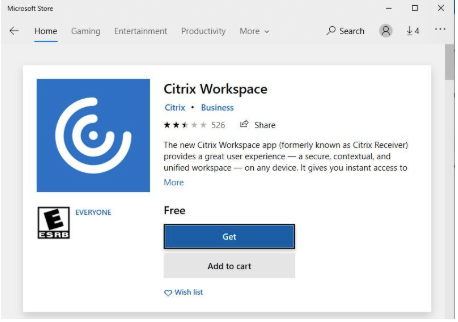
- If you are on a Windows PC, Open the Microsoft Store application on your Start menu. Search for the “Citrix Workspace” app. Install this application on your PC.
- Open the Microsoft Store on your PC and Search for Citrix Workspace
- Click the Get button
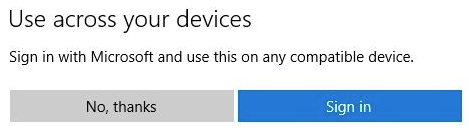
- You may be prompted to install on all your devices. This has not been extensively tested at Sinclair. Recommend selecting the No, thanks button
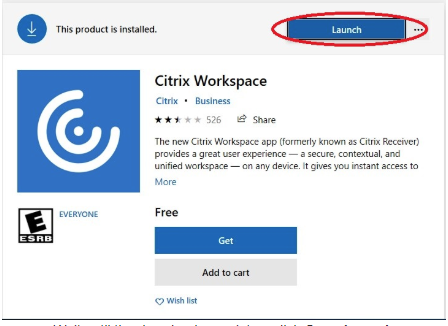
- After the installation finishes, launch it from either the Microsoft Store button or the Start menu. (The Citrix Workspace app is also available in the app store on MacOS, similar instructions apply)
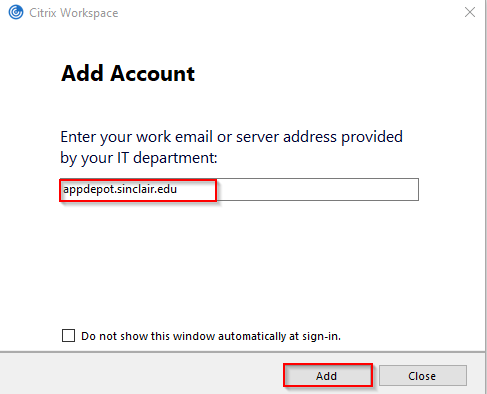
- Once the Citrix Workspace app launches, you will be asked to enter your work email or server address. Enter “appdepot.sinclair.edu” and click the Add button.
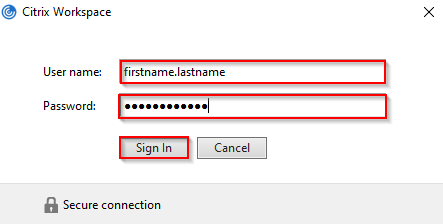
- Enter your Sinclair user name and password when prompted.
- When the AppDepot website loads, select one of the “virtual” desktops and operating systems from the Desktops tab. Virtual desktops essentially provide a Windows computer that is inside the Sinclair Network that you can use from your remote location. If you have been given access to remote to your own campus PC, you will see that option under Desktops as well.
- Map the network drive – See How do I get my H: drive or network share?
- Citrix Workspace App from the browser
- Open your browser
- Enter the URL www.citrix.com/downloads
- Scroll or use the drop-down until you see “Citrix Workspace App”
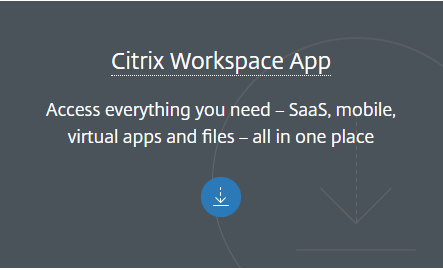
- Click the blue circle with the down arrow
- The Workspace app for Windows should be expanded and you will see Workspace app for Windows Current Release
- Click on the most recent release listed
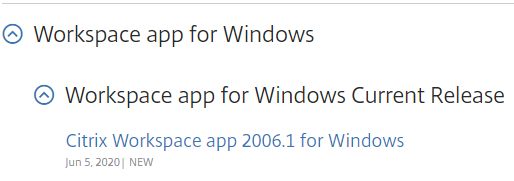
- Click the Download Citrix Workspace app for Windows button

- The file downloaded, then click the downloaded file name if it does not automatically launch

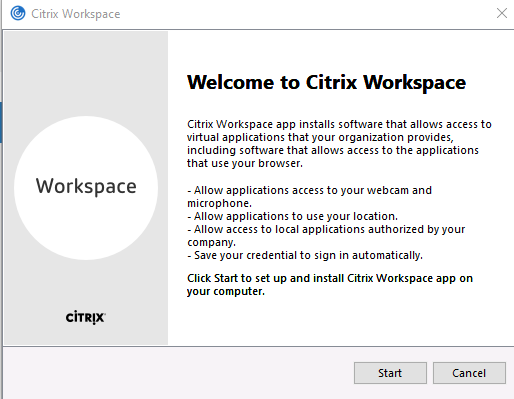
- Click the Start button on the Welcome to Citrix Workspace screen
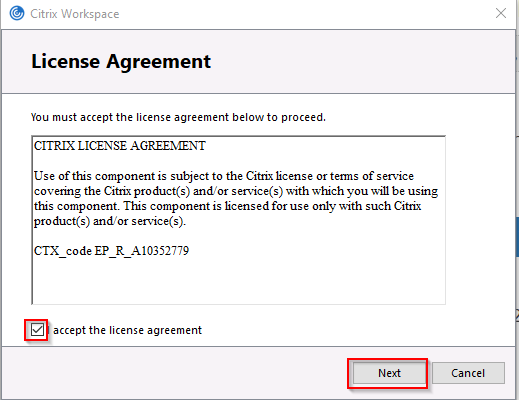
- Place a check in the “I accept the license agreement box” and click the Next button
- Optional: The most secure setting is to block screen capture. In most cases, DO NOT
Enable. Click the Install button
- Click Add Account button on the Installation successful screen
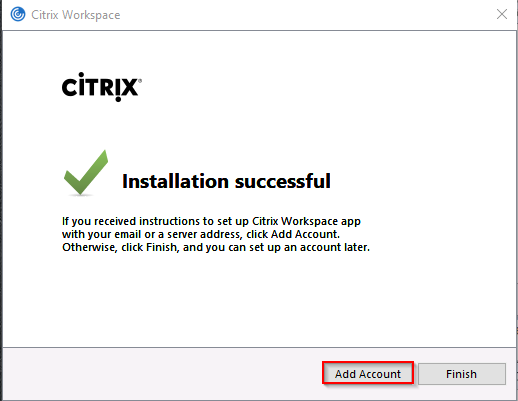
- In the Add Account window enter the server address appdepot.sinclair.edu and then click the Add button
- Enter your Sinclair network credentials. Usually firstname.lastname (this is the part before the @ of your Sinclair email address). Enter your network password and then click the Sign In button.
- Go to your Virtual desktop and Map the network drive – See How do I get my H: drive or network share?
- Accessing App Depot from a Browser
Note: For the most reliable connection and best performance, App Depot should be accessed via the Citrix Workspace App.However, if you are unable to install or access the app, you can access via a browser.
- Open a web browser – Chrome, Firefox or Safari are best supported
- Go to the URL: https://appdepot.sinclair.edu
- Log in with your Sinclair network username and password then click the Log On button
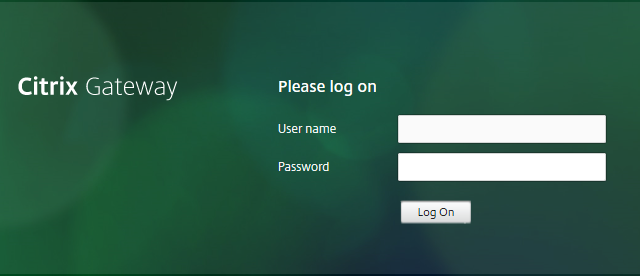
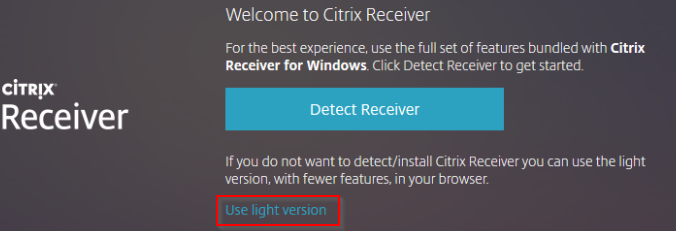
Note: if you see the dialogue box below, click on the Use light version link at the bottom of the box to access the login screen
- When App Depot opens, you will likely default to the HOME tab, click on the APPS or DESKTOPS tab to proceed

- Go to your DESKTOPS (select the correct one to use) and Map the network drive – See How do I get my H: drive or network share?
NOTE: For all 3 options these desktops are not persistent (unless you're remoting to your own PC). If you map a drive or use a printer from one of the virtual desktops, they are only available during that virtual/remote session. The desktop configuration will not be saved the next time you login to App Depot.
Sign Out of Windows when finished working: Click the Windows Start button in the lower left, click your user icon (third from the bottom), and select Sign Out from the popup. When you are finished using App Depot, both for securely closing the connection and to free up the license for use, it is important to close any open app windows and to log off. From the App Depot main page, click the gear icon in the top right and choose Log Off.