Account Basics
Your Sinclair network account gives you access to tools like my.sinclair, Sinclair email, eLearn, Microsoft 365, and more.
- Students receive their account automatically when applying through Admissions.
- Employees are issued accounts upon their official start date.
Username format: firstname.lastname (e.g., john.reading). If a duplicate exists, a number may be added (e.g., john.reading2). Usernames are not case sensitive and are limited to 20 characters.
Login format: use your full Sinclair email address: username@sinclair.edu.
Initial Password Format
Your temporary password is: PassXXXX (where XXXX = last four digits of your Social Security Number).
- You will be prompted to change your password at first login.
- Passwords must be updated every 90 days. You will receive a reminder 1 week before the deadline.
Password Requirements
Your Sinclair password must:
- Be at least 8 characters long
- Not include spaces or apostrophes
- Not contain your first or last name
- Be different from your last 13 passwords
- Include three out of four of the following:
- One lowercase letter (a–z)
- One uppercase letter (A–Z)
- One number (0–9)
- One special character (e.g., ! @ # $ %)
Account lockout: If you enter your password incorrectly 10 times in 15 minutes, your account will be temporarily locked. It will automatically unlock after 15 minutes.
Forgot Your Password?
Use the Password Reset Tool:
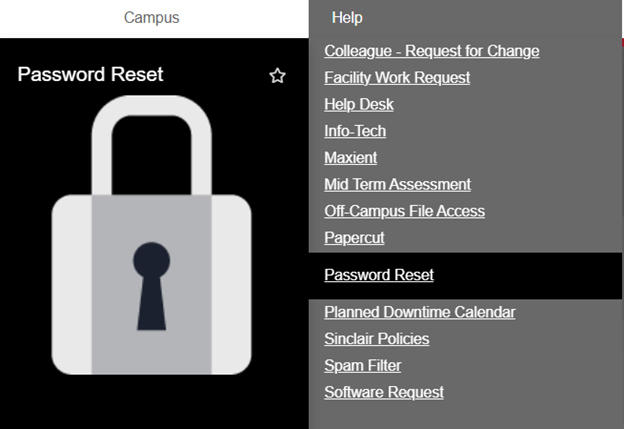
- Go to my.sinclair.edu
- Click on the “Forgot Password” link
- Verify your identity using the last four digits of your Social Security Number
- Ensure this info matches what you provided during registration or hiring
Multi-Factor Authentication (MFA)
All students, faculty, and staff are required to set up MFA (Multi-Factor Authentication) for added security. MFA means you’ll log in using:
- Something you know: your password
- Something you have: your phone (via an app or code)
How to Set Up MFA
- On a computer: Log in to the Sinclair portal with your password
- Click Next when you see “More Information Required”
- Select Start by getting the app
- On your phone: Download the Microsoft Authenticator app
- On your computer: Click Next until a QR code appears
- On your phone: Open Authenticator → tap + → choose Work or School Account → Scan QR Code
- After scanning, follow the prompts to complete setup.
Password Best Practices
- Change your initial password immediately.
- Avoid saving passwords in browsers: Browsers like Chrome or Edge can be convenient, but they may store passwords in ways that are vulnerable to malware or physical access. Instead, use a secure password manager.
- Use a password manager such as Bitwarden, 1Password, or LastPass to generate and securely store complex passwords. These tools encrypt your data and offer browser extensions and mobile apps.
- Don’t reuse passwords across accounts: Every account—especially your Sinclair account—should have its own unique password. Reusing a password puts all your accounts at risk if one is breached.
- Change passwords immediately if you suspect a security incident has occurred. If you think your Sinclair or personal account has been compromised, change the password immediately and notify the HelpDesk.
- Be wary of phishing: Never enter your Sinclair credentials on a site unless you are 100% sure it’s legitimate. Double-check the URL and don’t click login links in unexpected emails. See Cyber Security @ Sinclair for tips.
- Log out on shared devices: Always sign out of your Sinclair account (and browser sessions) when using public or shared computers, like in labs or libraries.
- Don’t share your password, even with a friend, coworker, or supervisor.