Top 10 Cyber Security Tips
1. Use Strong Passwords
Create long, unique passwords with a mix of characters. Avoid personal details and common words.
2. Don’t Reuse Passwords
Use different passwords for different accounts to limit exposure if one gets compromised.
3. Use a Password Manager
Tools like LastPass or Bitwarden help securely store and generate complex passwords.
4. Enable Multi-Factor Authentication (MFA)
Always opt into MFA where available, including for your Sinclair login.
5. Beware of Phishing
Don’t click on suspicious links or attachments. Always verify the sender before responding.
6. Avoid Saving Passwords in Browsers
Browsers can be vulnerable. Use a dedicated password manager instead.
7. Update Devices and Software Regularly
Install updates promptly to patch security vulnerabilities.
8. Use Secure Wi-Fi
When on campus, connect to SCC-Wireless using your Sinclair credentials.
9. Back Up Your Data
Store important files in OneDrive or another secure cloud service.
10. Lock Your Screen
Always lock your device when stepping away, especially in shared environments.
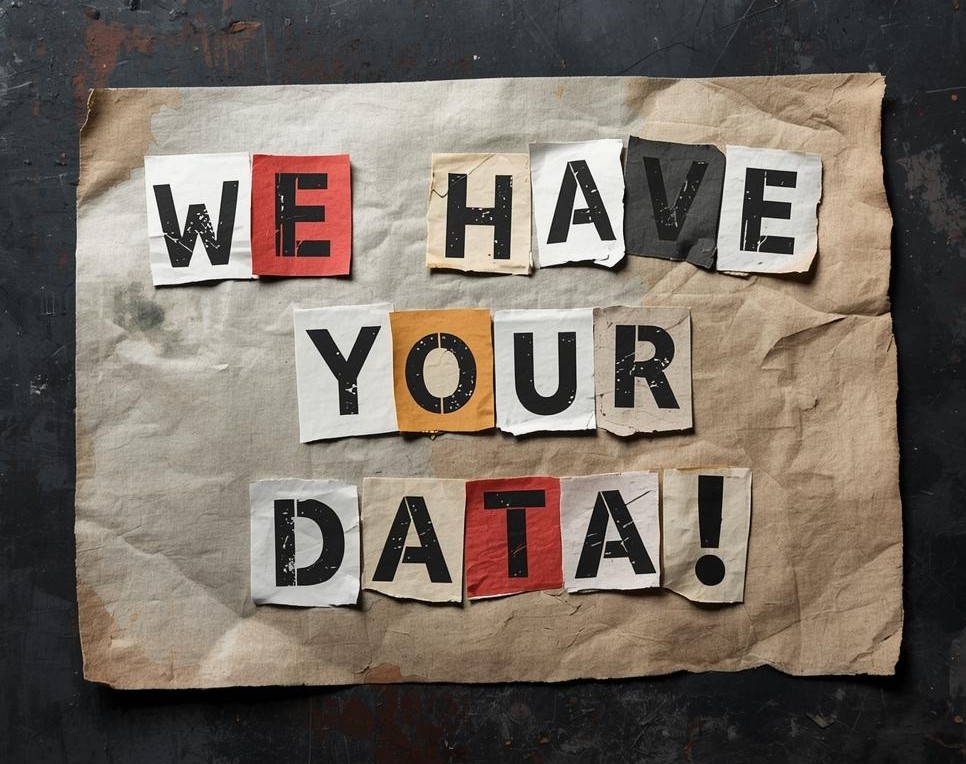
Spotting and Reporting Phishing
- Look for red flags: generic greetings, urgent threats, unknown attachments.
- Emails from Sinclair will always come from a
@sinclair.eduaddress. - Report suspicious emails by contacting the HelpDesk at (937) 512-4357.
What Not to Do
- Don’t investigate suspicious emails or links on your own. Trying to open or explore risky content can put you and Sinclair’s systems at greater risk. Report it immediately to the HelpDesk.
- Don’t ignore warnings or system updates. These protect you from known threats.
- Don’t share your login credentials with anyone—even coworkers or classmates. Each user is responsible for actions under their own account.
Sinclair Policies
These policies outline your responsibilities and rights when using Sinclair technology and networks.
- Acceptable Use of Information Technology Policy (AUP)
- Information Security Policy
- Student Code of Conduct
Please remember:
- Sinclair is a public institution. Your activity on Sinclair systems is subject to public records laws and institutional monitoring.
- Peer-to-peer file sharing is prohibited.
- Only use Sinclair IT systems for lawful, academic, or college-related purposes.
Smart Cyber Habits for Personal Devices & Online Presence
Security tips for staying safe—at work and at home.
1. Protecting Personal Devices
While Sinclair doesn’t require specific security settings on personal devices, here are a few suggestions to reduce risk:
- Enable device encryption on phones, tablets, and laptops to protect data if lost or stolen.
- Keep operating systems and apps up to date to patch known vulnerabilities.
- Use antivirus or anti-malware software from a trusted vendor.
- Avoid using public Wi-Fi without a VPN, especially when checking email or accessing cloud services.
2. Using Strong, Unique Passwords
- For Sinclair accounts, follow the Password Requirements.
- Avoid using the same password across personal and work accounts.
- Use a reputable password manager to store complex passwords securely.
- Never share passwords or write them down near your workstation.
3. Safe Social Media Practices
- Limit what you share publicly—especially your job title, contact information, or travel plans.
- Watch out for quizzes, games, and third-party apps that ask for unusual permissions.
- Be cautious about clicking links in direct messages, even if they appear to come from friends or colleagues.
4. Working Remotely or On the Go
- Use Sinclair’s VPN (when possible) to securely connect to internal systems.
- Lock your screen when stepping away, even at home.
- Avoid downloading sensitive materials to personal devices unless you're confident they’re secure.
5. Recognizing Phishing & Scams
- Be suspicious of urgent or emotional appeals, especially if they ask for personal information or login credentials.
- Double-check the sender's email address—spoofed domains often look legitimate at first glance.
- When in doubt, report suspicious emails to the HelpDesk.