Overview:
Additional information that will describe some customization that can be done for meetings.
Steps:
Configuration Options:
- Open your browser and go to the url Sinclair.zoom.us
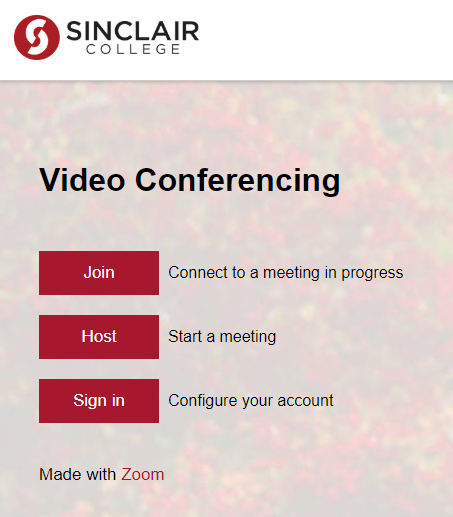
- Click the Sign in box
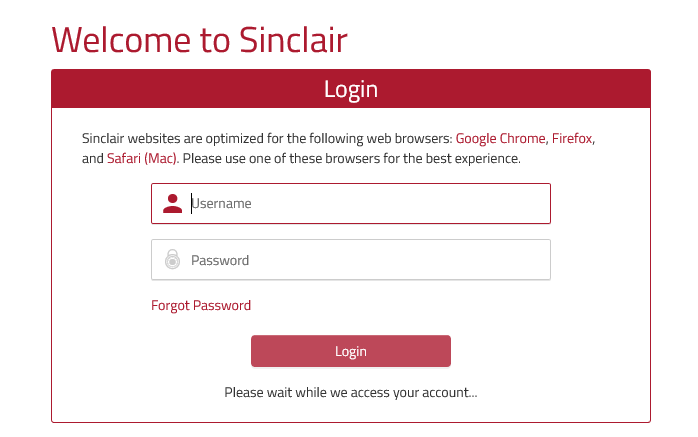
- Login with your first.lastname
- Enter your password – the same that you log into your workstation
- Click the Login button
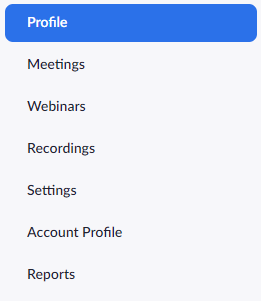
- On the left hand side of the screen the section items that can be configured are listed
 Profile
- Personal Meeting ID – 10 digit meeting id
- URL – Link to the meeting with the Personal Meeting ID embedded
- Personal Link – Create your own personal link in the format of https://sinclair.zoom.us/my/(Personal Link Name)
Personal link is an alias of your personal meeting URL. (Not advised by Sinclair)
It must be 5 to 40 characters
It must start with a letter and can contain only letters (a-z), numbers (0-9) and periods (“.”)
- Time Zone
- Meetings
- Upcoming meetings
- View upcoming meetings that have been scheduled
- Schedule a New Meeting
- Upcoming meetings
Save time by scheduling your meetings directly from your calendar.
Download and install the Microsoft Outlook Plugin for the local Outlook install
or
The Chrome Extension for easy access to schedule from your Chrome browser
- Previous meetings
- Personal Meeting Room
Your Personal Meeting Room is the virtual meeting room that is permanently reserved for you. You can start an instant meeting there at any time, or schedule it for future use.
The Personal Meeting ID (PMI) and the Personal Link are the two ways to access this room.
- Start Meeting on demand
- Edit Personal Meeting Options
- Require meeting password (this is set to secure the meeting from unintentional guests joining)
- Video
- Host – On or Off
- Participant – On or Off
- Audio
- Telephone, Computer Audio, or Both
- Meeting Options
- Enable join before host
- Mute participants upon entry
- Enable waiting room
- Only authenticated users can join
- Breakout Room pre-assign
- Record the meeting automatically
- Alternative Hosts
- Webinars
Faculty and staff have access to the Webinar feature
but needs to be reviewed and scheduled as a resource via our Multimedia team via a “Multimedia Event Reservation Service Request” as Sinclair has a limited number of webinar licenses that can be used concurrently.
- Recordings
View your recorded meetings (Meetings you have attended or hosted that have been recorded.)
- Settings – Options for all meetings that are set up with your account
- Schedule meeting – Options that are related to scheduling the meeting, settings on Personal Meeting ID, who can join meetings, require passwords, etc...
- In Meeting (Basic) – Chat options, file transfer, Co-host, Polling, Screen sharing options, Whiteboard, Remote control, etc..
- In Meeting (Advanced) – Breakout room, Remote support, Waiting room, etc...
- Email Notification – When a cloud recording is available, When attendees join meeting before host, When someone scheduled a meeting for a host, etc...
- Other – Schedule Privilege
- Account Profile
Shows the Basic information about your account
- Reports
- Usage – View meetings, participants and meeting minutes within a specified time range
- Meeting – View registration reports and poll reports for meetings
- You must first enable registration for your meeting to use this option
Built in Tools
For additional information around the tools view the document Tips & Tricks
- Polling
- Breakout Rooms
- Non-verbal Feedback
- Virtual Backgrounds
- Sharing a Screen
- Whiteboard
- Annotation
- Transcription of meetings
- Chat
Additional resources:
- https://zoom.us/docs/doc/Tips%20and%20Tricks%20for%20Teachers%20Educating%20on%20Zoom.pdf
- https://support.zoom.us/hc/en-us
- https://support.zoom.us/hc/en-us/articles/201362033-Getting-Started-on-Windows-and-Mac
- https://support.zoom.us/hc/en-us/categories/201137166
- https://support.zoom.us/hc/en-us/sections/201740096-Training
- https://bongolearn.zendesk.com/hc/en-us/categories/360000374534-Virtual-Classroom
- https://support.zoom.us/hc/en-us/articles/206618765-Zoom-Video-Tutorials
- https://support.zoom.us/hc/en-us/articles/201362803-Scheduling-privilege
- https://www.youtube.com/channel/UC2SxmE4C-KAQuHaEfHVymgQ
- https://support.zoom.us/hc/en-us/articles/115005769646-Participating-in-breakout-rooms
- https://support.zoom.us/hc/en-us/articles/211579443-Registration-for-Meetings
- https://support.zoom.us/hc/en-us/articles/201363213-Getting-started-with-reports
- In Ivanti Knowledge article 11476 – Zoom Security FAQ
Faculty are sometimes registering with their my.sinclair.edu account instead of their sinclair.edu account. They need to login via SSO with their Sinclair.edu account to receive the Pro/EDU licenses.