Tips for Safe Use of Web Meeting Tools
Classroom Management Strategies
To ensure the privacy of your students during your Zoom session, follow these best practices:
- Create a Waiting Room Message so that any participant who does not login using their Sinclair Zoom credentials will automatically be placed in the Waiting Room and see your message.
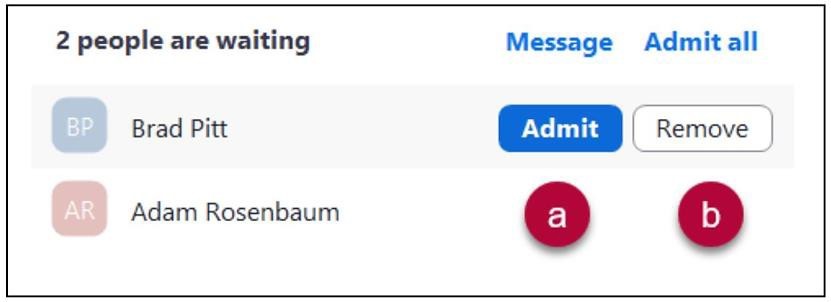
- (a) Add or (b) Remove Participants in the Waiting Room. Note: You have the options when participants are in the Waiting Room. It is NOT recommended that you use the Admit All feature as this may admit participants that should not be in your class.
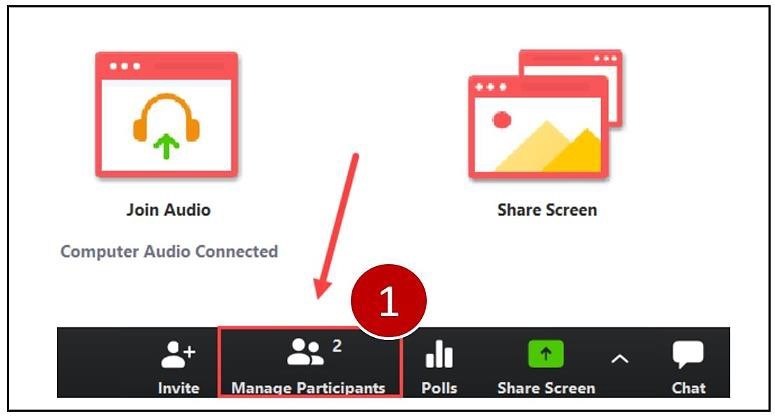
- Remove a Participant from Class by clicking (1) Manage Participants at the bottom of the Zoom window, then placing your mouse over the name of the person and selecting More and Remove.
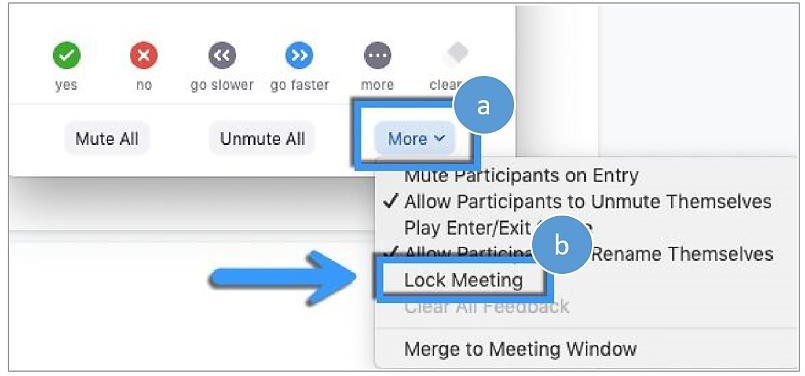
- Lock the meeting so that no additional participants are able to enter your class. While the meeting is in session, click Participants at the bottom of your Zoom window. In the pop-up box, select (a) More and (b) Lock Meeting. When the meeting is locked, no new participants can join, even if they have the meeting ID and password.
*Please note that Virtual Meetings can only be recorded and shared by the meeting host. Recording of the meeting by anyone other than the host of the meeting is prohibited. Please see the Acceptable Use of Information Technology policy.