Overview:
There are several ways to join a Zoom meeting. Choose the method that best describes the way you will be joining a Zoom meeting.
Steps:
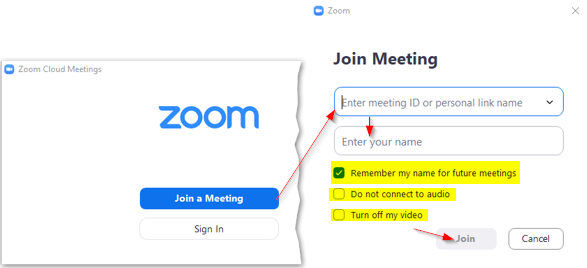
Zoom application w/ meeting id
Joining from the Zoom desktop application, you will need to know the meeting id
- Open the Zoom desktop application
- The option to Join a Meeting or Sign in will now be presented
- Click Join a Meeting
- Enter the meeting ID or personal link name
- Enter your name
- Optional items to select if you choose
- Remember my name for future meetings
- Do not connect audio
- Turn off my video
- Click the Join button
Web application Join a Meeting
- Go to https://sinclair.zoom.us via a browser
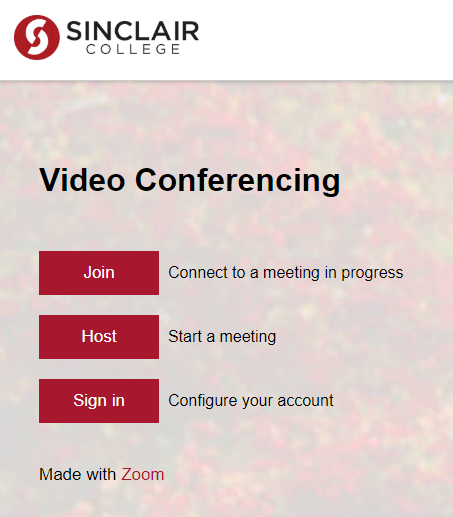
- Click the Join button
- Log in
- Enter the Meeting ID or Personal Link Name and then click Join

eMail invite
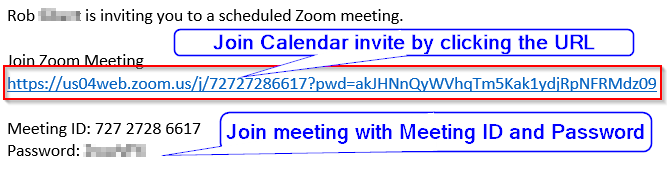
- If you were sent a Zoom meeting request by email there are two options to join
- Click the URL listed in the calendar invite to join directly into the meeting
OR
- Open the Zoom desktop application or log into the web application via https://sinclair.zoom.us and join with the (Meeting ID or Personal Link Name) and Password provided in the email
Additional resources:
There are more video tutorials at the site listed above. Below are a few topics, but are not limited to just these
- Meeting Controls
- Joining & Configuring Audio & Video
- Zoom 1010 : Polling (in Meeting)
- Sharing your screen
- Schedule a meeting in Outlook
- Schedule a Webinar
- Screen share and annotation