Overview:
Microsoft Teams is a collaboration tool that can be downloaded and ran as a standalone application.
Steps:
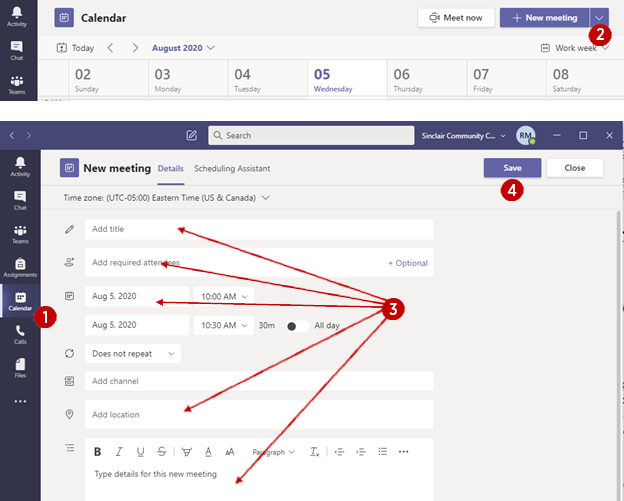
Scheduling a meeting in Microsoft Teams:
- (1) Go to Calendar on the left toolbar and select Calendar
- (2) Click “New meeting" in the top right corner of the screen
- (3) Enter details, if you are wanting to use the Scheduling Assistant, the same as Outlook, select Scheduling Assistant at the top of the screen
- (4) Click Save
Create a meeting now
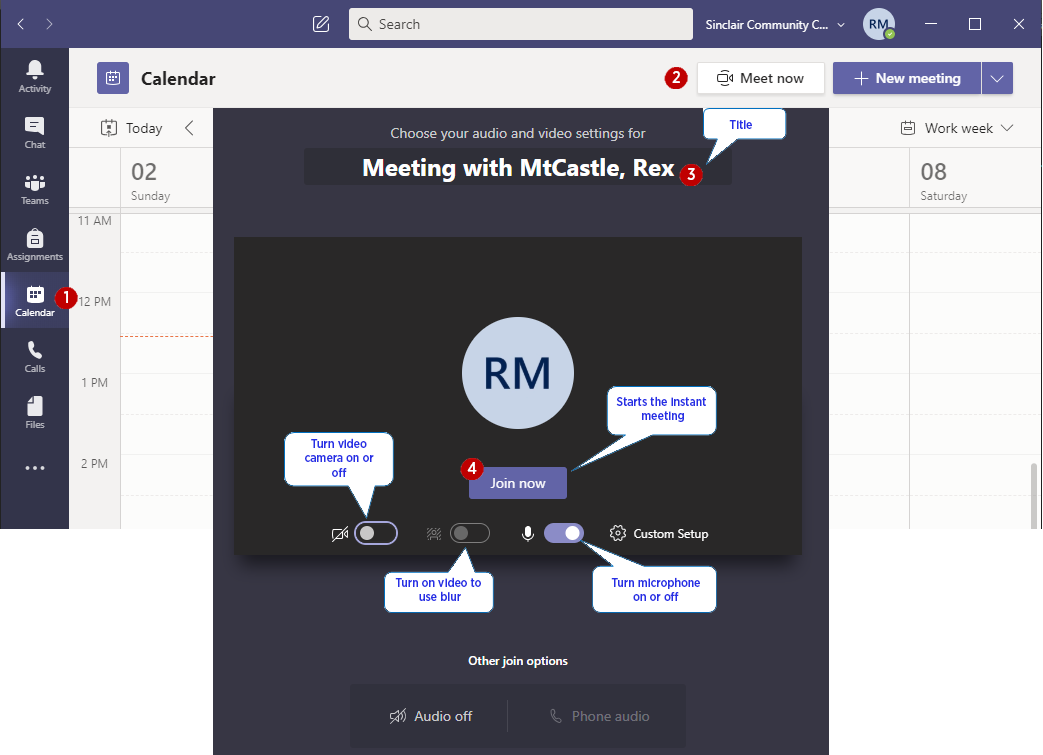
- (1) Go to Calendar on the left toolbar and select Calendar
- (2) Click “Meet now"
- (3) Enter a title
- (4) Click “Join now.” If you have never joined, it will prompt you for access to use devices on your PC like Mic and web cams. Some basic settings can be changed on this screen.
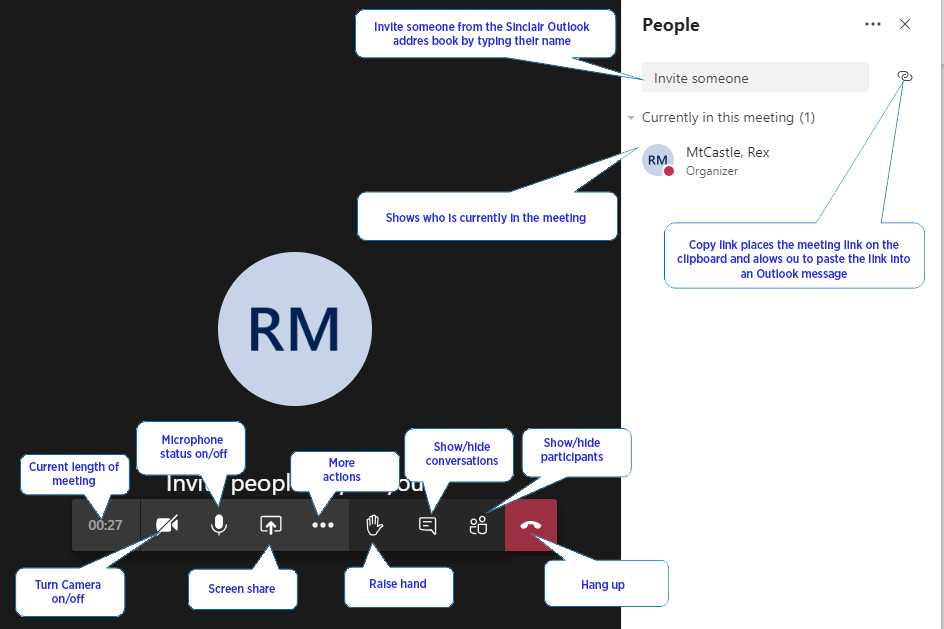
- To share the meeting, you can invitesomeone from the Outlook directory or click the link button to the right of “Invite someone.” This will copy the link which you can share via email
Accessing a meeting from an email invite
The meeting was accepted from an email invite and is now located in your calendar. There are three options on how to join the meeting.
Join from a calendar reminder popup
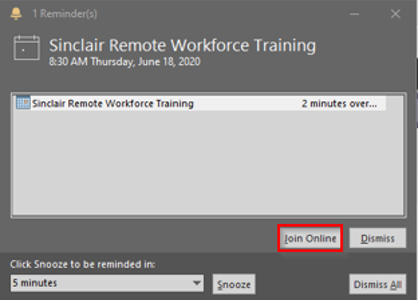
- If a reminder was set by the meeting host, you will receive a popup reminder prior to the meeting starting
- Click Join Online, Teams will attempt to open in your browser.
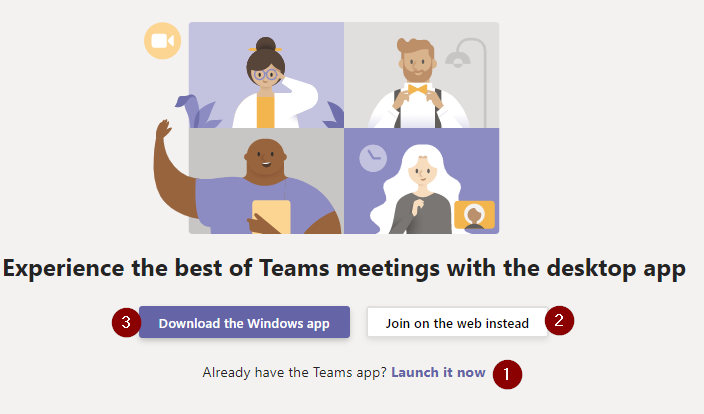 (1) If you have the Teams application installed you can click on the Launch it now to join the meeting.
- (2) If you do not have the Teams application installed on your computer and would rather join the meeting via your web browser click the Join on the web instead
- (3) If you do not have the Teams application, but would like to install it click the Download the Windows app button
Join from your Outlook calendar
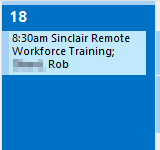 The meeting was sent to you via an email and you have already accepted the meeting request prior to the meeting time.
- Go to your Outlook calendar and double click on the meeting
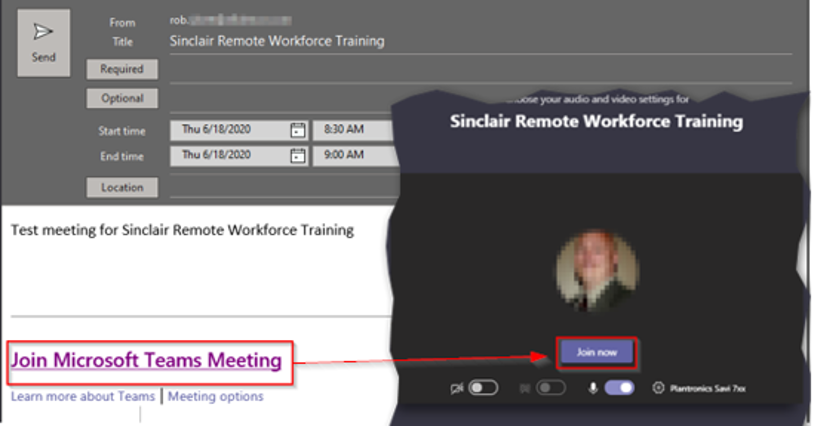
- Click on the link Join Microsoft Teams Meeting in Outlook to join the meeting
- Microsoft Teams will open with a join meeting screen and then click the Join now button
Join from the Microsoft Team’s calendar
You are working in Teams and know of an upcoming meeting.
- Click on the Calendar in the left toolbar

- Locate the Team’s meeting that you are wanting to attend and click the Join button

- Microsoft Teams will open with a join meeting screen and then click the Join now button