Scheduling a Zoom meeting can be done from the application, Outlook Plugin, or logging into Sinclair.zoom.us
Steps:
Desktop Application
- Logged into the Zoom desktop application
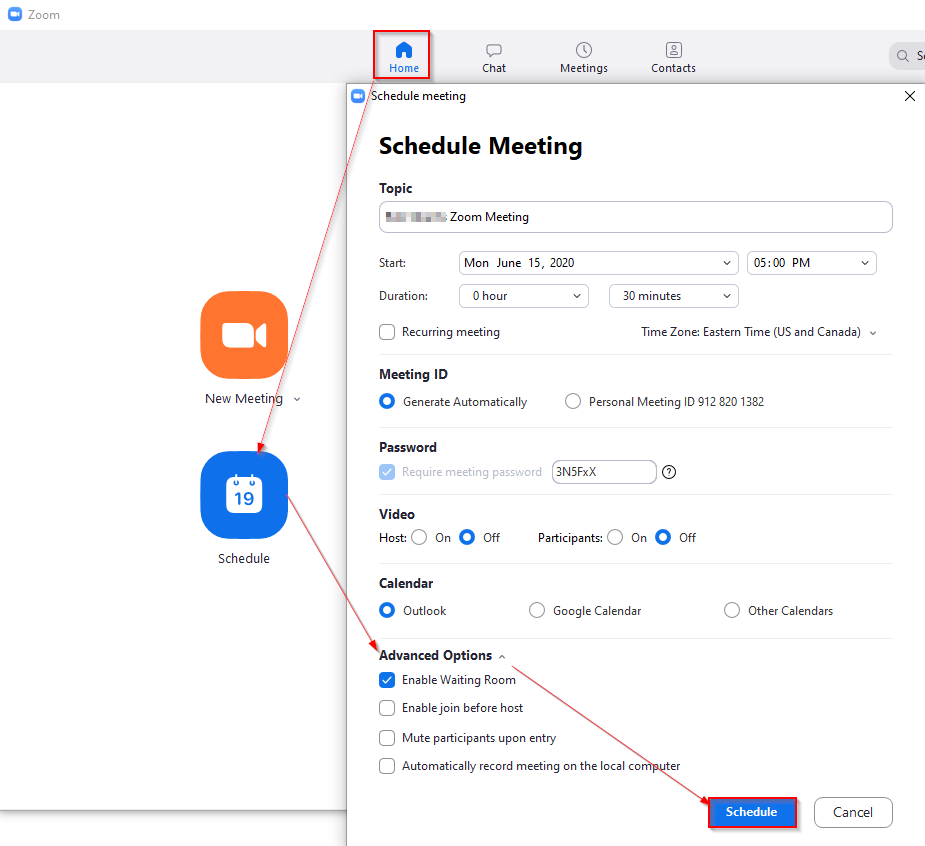
- Click on Home
- Click the Schedule button
- Complete the meeting information as needed
- Look at Advanced Options to see if there are additional settings that you would like to configure for this meeting.
- Click the Schedule button and an email with the information will be created and ready for you to invite the attendees to the meeting
Outlook Plugin
The Outlook Plugin can be downloaded from the Zoom website https://zoom.us/download. Once installed you can use the following set of instructions to Schedule a Meeting or Start Instant Meeting.
Schedule a Meeting
- Click on Schedule a Meeting from the Home Screen in Outlook
- The Zoom – Schedule Meeting popup box will appear for you to complete the meeting setup information
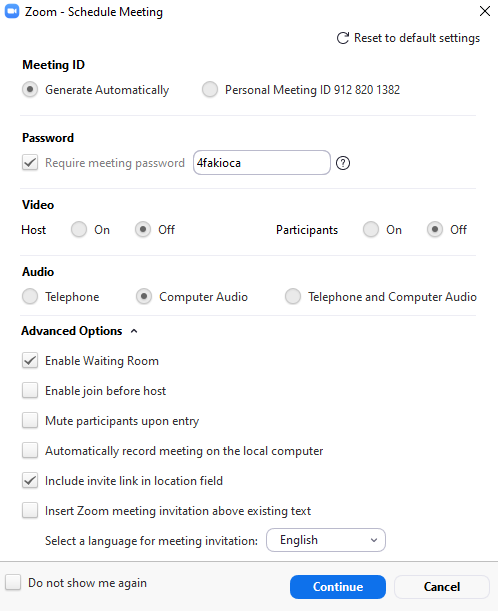
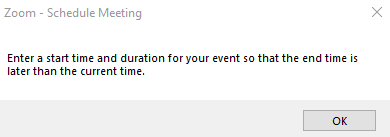
- Click the Continue button and you will receive a popup requiring you to enter a start time and duration of the meeting, click ok
- Complete the required fields along with any additional fields and then click end
- Required participants
- Optional participants
- Set the Start and End Time
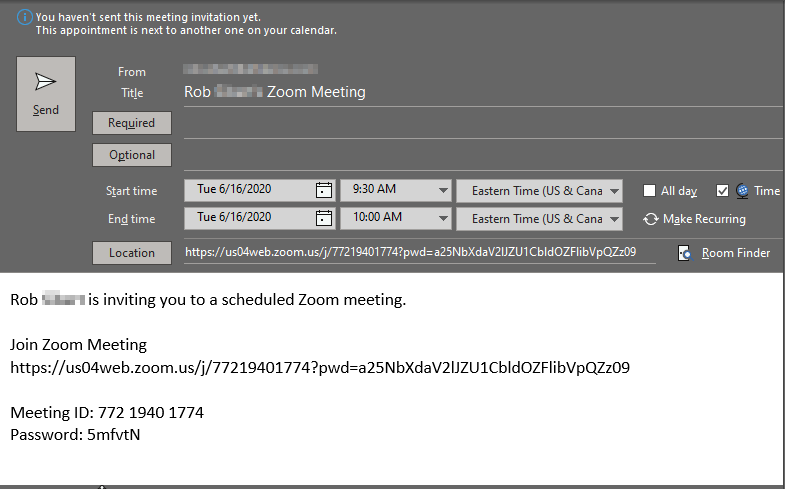
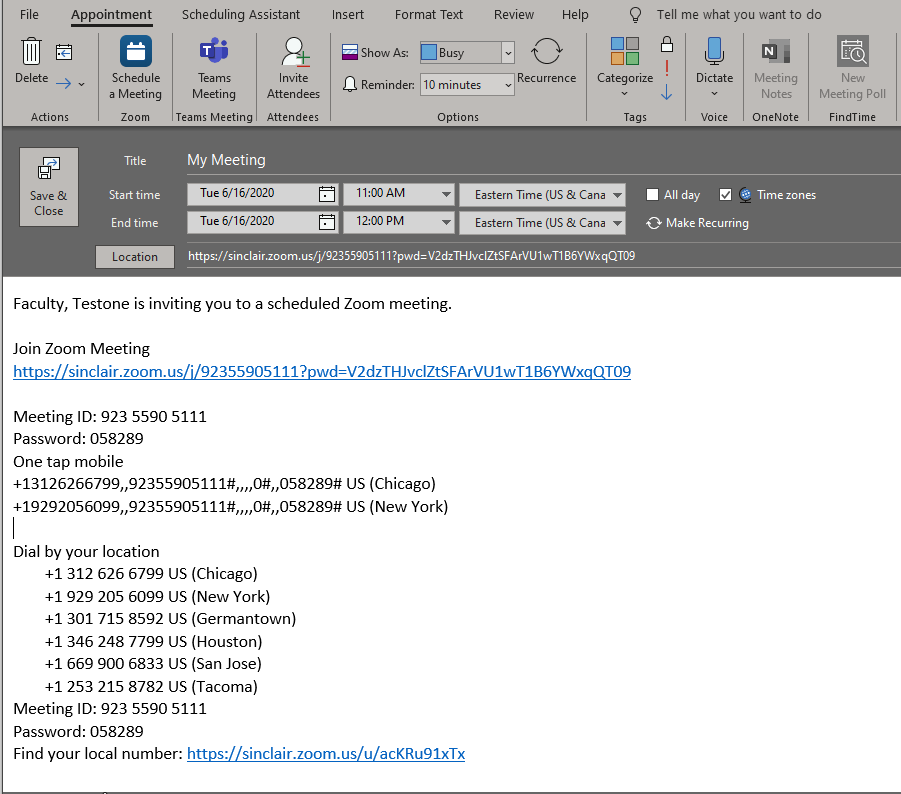
The body of the message will be autocompleted by the plugin displaying the Join Zoom Meeting URL and the Meeting ID and Password
Start Instant Meeting
- Click on the Start Instant Meeting from the Home Screen In Outlook
- Click the Sign In button
- Log in with your Sinclair email address and your password being your workstation password.
- Click the Join with Computer Audio
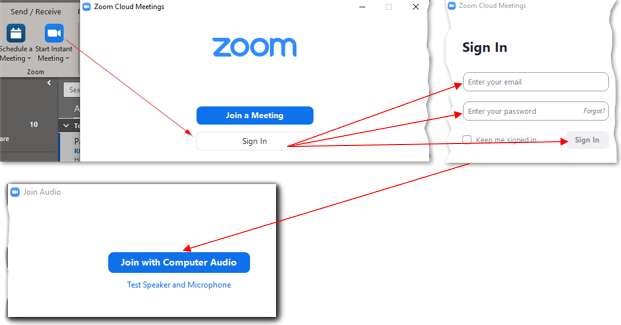
- A black screen will now appear with the Zoom Meeting
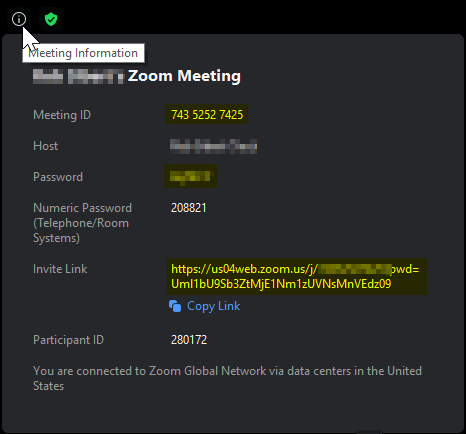
- In the upper left hand screen there is an “i” when you hover your cursor
- Click on the “i” to display the instant meeting information
There are several key pieces of information on this screen
- The Meeting ID - Allows you to give this to another participant so that they can join a meeting with the meeting id and password
- Password – Unique password to allow users to join the meeting
- Invite Link – Allows you to copy the link and email it to someone to join the meeting immediately.
Sinclair.zoom.us
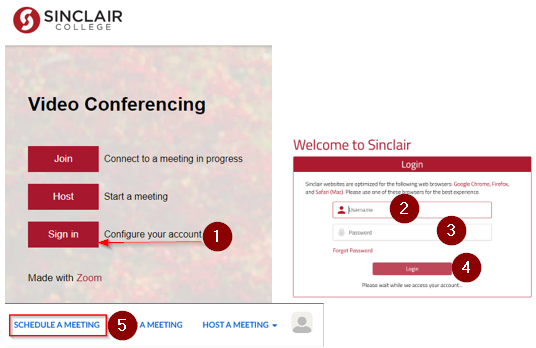
- Open a browser window and go to Sinclair.zoom.us
- Click the (1) Sign in button
- Enter your (2) first.lastname and your (3) password – the same that you log into your workstation
- Click the (4) Login button
- Towards the top right of the screen click on (5) Schedule A Meeting
- Complete the necessary information to schedule the meeting, click Save and Continue
- The meeting will now be scheduled in Zoom and now you have the option to add it to a Calendar (Google Calendar, Outlook Calendar (.ics), or Yahoo Calendar) or Copy Invitation and you will need to create your own calendar invite and add recipients
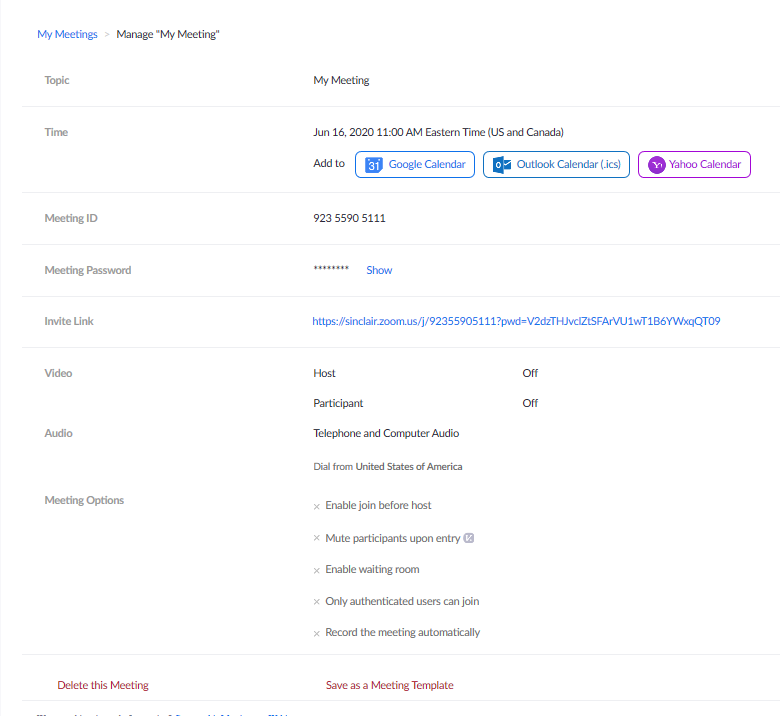
- Adding it to the Outlook Calendar will look like the information in Scheduling a Meeting via the Outlook Plugin. You will need to click the Invite Attendees to invite people to the meeting.
* Note that scheduling the meeting through https://sinclair.zoom.us does not allow you to invite users.You will still need to invite them whichever method you choose (Google Calendar, Outlook Calendar, Yahoo Calendar, or Copy Invitation and creating your own invite message in an email client)