Overview:
Running the Mitel Connect Client on a workstation allows you to answer your phone using your computer.
Steps:
- Click on the Mitel Connect Icon

- At the logon screen, enter your Sinclair credentials.
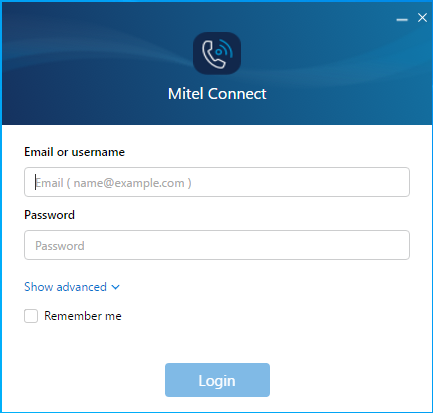
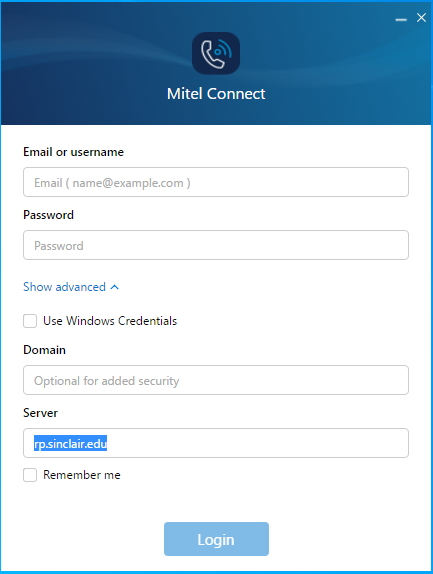
- If on campus enter 140.106.52.186 in the server box. If off campus enter “rp.sinclair.edu” in server box. Then click login.
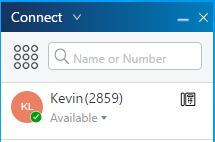
- Once logged on click on the small phone icon to the right of your name.
- If you are going to answer calls on your PC click “Softphone” and in the drop down box select the headset that you will be using on the PC.
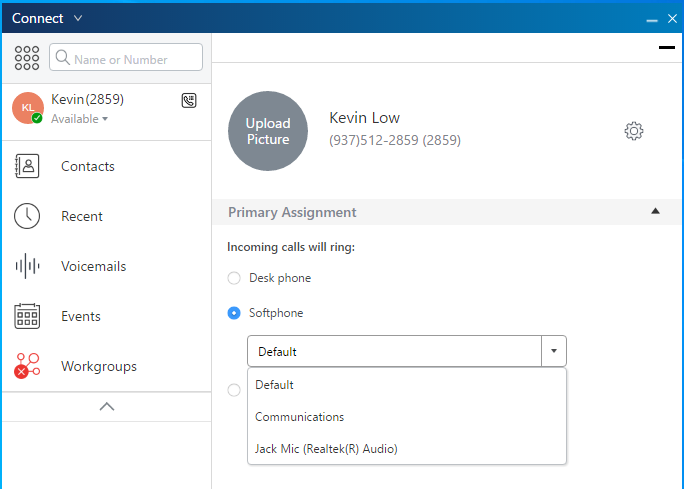
- Calls to your extension will now be ringing to your PC.

- This badge will show up when you receive a call. Click to Accept the call or Ignore.