Overview:
Configure your office phone to forward calls to your mobile phone
Important! You can change your availability state from off-campus in order to transfer your calls, but you must first follow the steps below while on campus to initially configure the forwarded phone number. After the initial setup, you can forward your calls remotely using the voicemail system to change your availability state
Steps:
Configure Availability State From your desk phone:
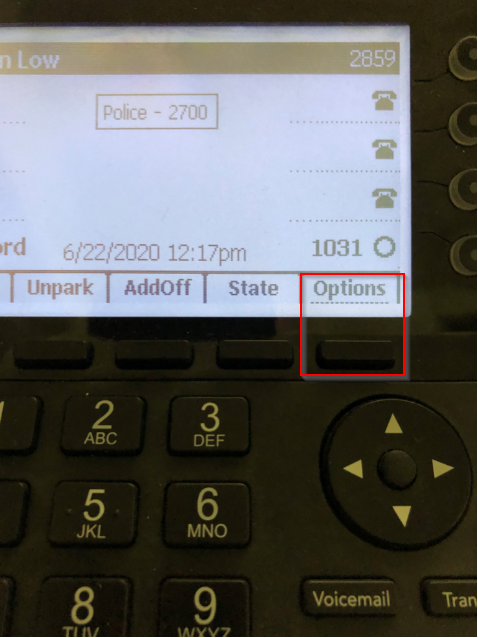
- Press the Options button
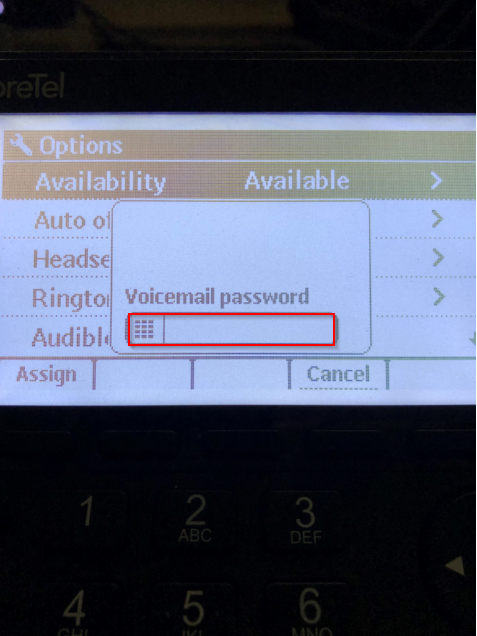
- Enter your voicemail password and press OK
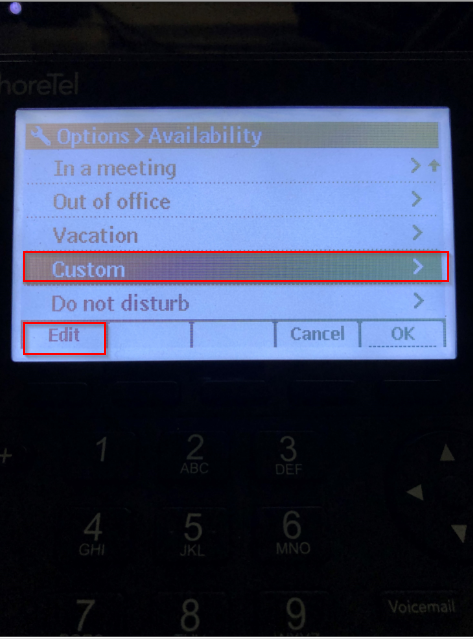
- Press the right arrow button and arrow down to "Custom"
- Press the Edit button
- "Forward Calls" can be set to Always or No Answer (press the right arrow button to change)
- Arrow down to "Always dest" and enter the destination number for your calls (including the area code)
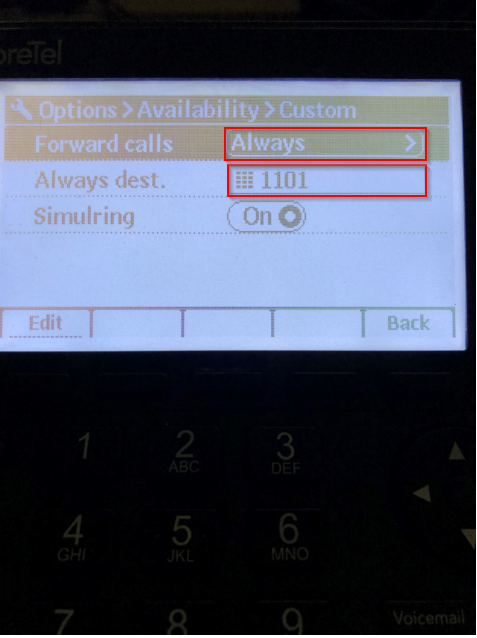
- "Simulring" should be set to "Off" to ring your destination number only
- Press the Back button, OK, and Exit
Your Custom state is now configured to forward calls to the alternate phone number of your choice and your availability state is set to Custom. You can change your state between Available (in the office) and Custom (forwarded to your alternate number) by either of the methods below:
From your desk phone:
- Press the State button
- Arrow to either Available (in office) or Custom (forward to alternate number)
- Press the OK button
From the Voicemail system:
- Dial 937-512-5400
- Enter your extension number
- Enter your password and press #
- Press 7 to change mailbox options
- Press 2 to configure availability state
- Press 5 to set Custom
The help desk can set up and/or change your availability states when you are away from your office. Please call 937-512-4357 for assistance.