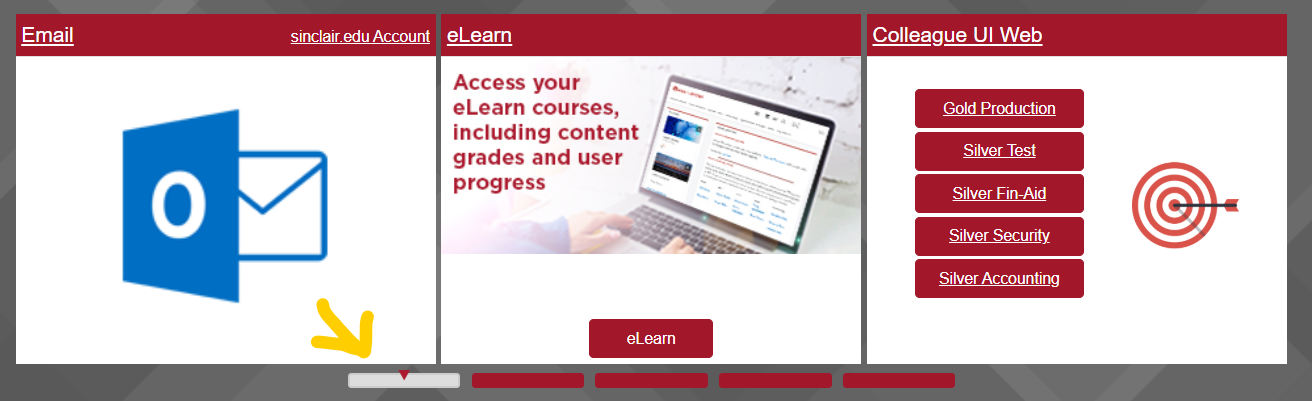
How to Log In
- Go to my.sinclair.edu.
- Enter your Sinclair username and password.
Username format:firstname.lastname(e.g.,john.doe) - If you forget your credentials, use the Forgot Username or Forgot Password links on the login page.
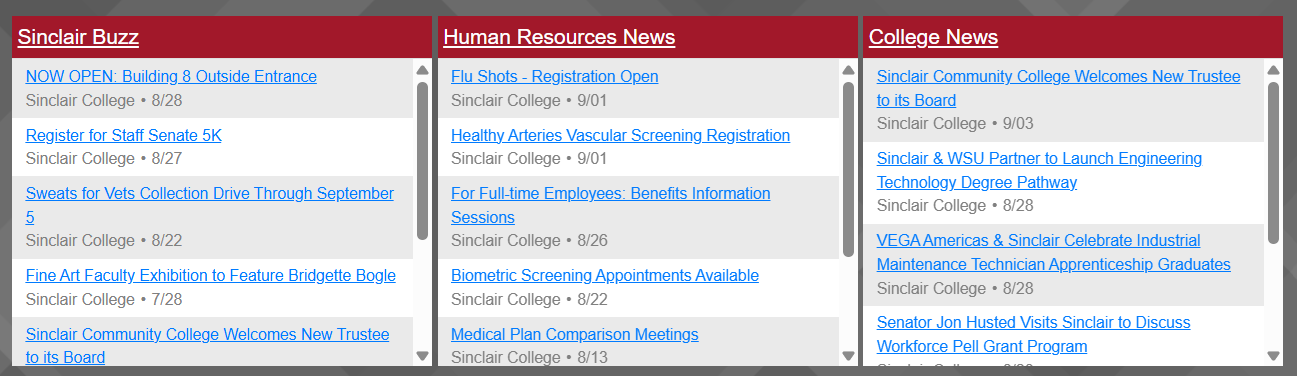
Stay Informed
The Sinclair Buzz, Human Resources, and College News feeds provide a convenient way for employees to stay up to date on college and employee events and announcements.
Use Key Tools
Access the Password Reset, SPAM Filter (Mimecast), and Help Desk links under the Supported Services dropdown for account support.
Bookmark Important Links
Use the dropdown menu to find your favorite resources, and click the star to save as a favorite.
Need help fast? Call the IT Help Desk at 937-512-HELP (4357) or visit the IT Help Portal.
Best Browsers to Use
For the smoothest experience with my.sinclair, eLearn, and other college tools, use one of these supported browsers:
- Chrome (recommended)
- Firefox
- Safari (on Apple devices)
Internet Browser Updates
Chrome
- IT subscribes to Google’s update service.
- New versions are downloaded and installed on classroom computers by IT.
Firefox
- IT checks for updates weekly.
- The previous version remains on the Start menu for a few days as a fallback.
Edge
- Updated automatically through Windows Update.
Using Phones, Tablets, and Chromebooks
Most devices work well, but performance may vary. Before buying a new device for school, test it with:
- eLearn (for classes)
- Colleague Self-Service (for registration and grades)